> ## Documentation Index
> Fetch the complete documentation index at: https://docs.grabmygig.com/llms.txt
> Use this file to discover all available pages before exploring further.
# Cities Settings
> Select which cities and zones to receive delivery offers from
The Cities setting lets you control which geographic areas the bot monitors for Roadie offers. Only offers from your selected cities/zones will be considered.
Adding more cities expands your potential offers, but make sure they're within a practical driving distance from your location.
***
## Why Cities Matter
* **Zone-Based Filtering**: Roadie organizes offers by city/zone. You must have a city selected to receive offers from that area.
* **Targeted Monitoring**: Focus on areas where you know the roads, traffic patterns, and best routes.
* **Flexibility**: Add or remove cities anytime based on where you want to work.
***
## Adding Cities
There are two ways to add cities to your list:
### Option 1: Add Manually
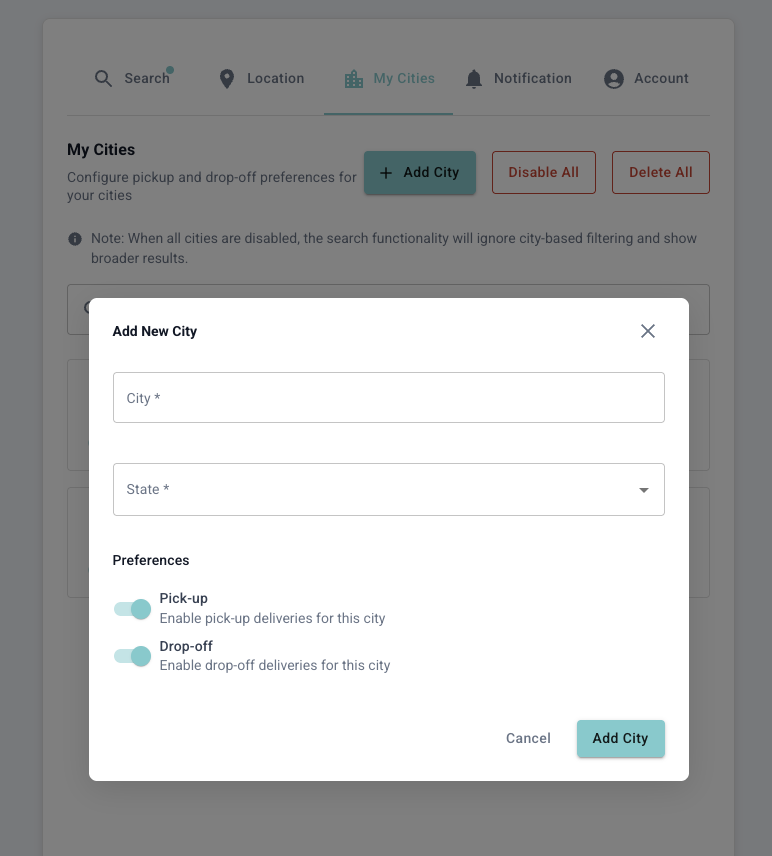 1. Go to **Settings** → **Cities**
2. Click **Add City** or the **+** button
3. Search for the city/zone name
4. Select the city from the dropdown
5. Click **Save** to add it to your list
Start by adding cities closest to your home location, then expand to nearby areas as you get comfortable.
### Option 2: Add from Offer
You can also add cities directly when you see an offer from a new area. This is a quick way to expand your coverage based on real opportunities.
**How it works:**
1. When you see an offer from a city not in your list, you'll see an option to add it
2. Click **Add City** on the offer notification
3. The city is automatically added to your Cities list
4. Future offers from this city will be monitored
This method is great for discovering new profitable areas you might not have considered.
***
## Managing Your Cities
### Viewing Your Cities
All your selected cities appear in a list on the Cities settings page. You can see:
* City/Zone name
* When it was added
* Option to remove
### Removing a City
1. Go to **Settings** → **Cities**
2. Find the city you want to remove
3. Click the **Remove** or **X** button
4. Confirm the removal
Removing a city means you'll stop receiving offers from that area immediately.
***
## Best Practices
Begin with 2-3 cities near your home. As you learn which areas have the best offers, gradually add more.
Some cities may be close in miles but far in drive time due to traffic. Factor this in when selecting cities.
Your Cities and Max Distance settings work together. Make sure they're aligned - no point adding a city 30 miles away if your max distance is 15 miles.
Some areas are busier during certain seasons (beach towns in summer, ski areas in winter). Adjust your cities accordingly.
***
## Common Questions
There's no strict limit, but we recommend keeping it manageable (5-10 cities) for the best experience.
Yes! Make sure to add the city where your home location is set, otherwise you might miss nearby offers.
Roadie may not have coverage in all areas. If your city isn't available, try searching for nearby larger cities or contact Roadie support.
***
## Next Steps
Set your home location for distance calculations.
Get notified when offers are accepted.
1. Go to **Settings** → **Cities**
2. Click **Add City** or the **+** button
3. Search for the city/zone name
4. Select the city from the dropdown
5. Click **Save** to add it to your list
Start by adding cities closest to your home location, then expand to nearby areas as you get comfortable.
### Option 2: Add from Offer
You can also add cities directly when you see an offer from a new area. This is a quick way to expand your coverage based on real opportunities.
**How it works:**
1. When you see an offer from a city not in your list, you'll see an option to add it
2. Click **Add City** on the offer notification
3. The city is automatically added to your Cities list
4. Future offers from this city will be monitored
This method is great for discovering new profitable areas you might not have considered.
***
## Managing Your Cities
### Viewing Your Cities
All your selected cities appear in a list on the Cities settings page. You can see:
* City/Zone name
* When it was added
* Option to remove
### Removing a City
1. Go to **Settings** → **Cities**
2. Find the city you want to remove
3. Click the **Remove** or **X** button
4. Confirm the removal
Removing a city means you'll stop receiving offers from that area immediately.
***
## Best Practices
Begin with 2-3 cities near your home. As you learn which areas have the best offers, gradually add more.
Some cities may be close in miles but far in drive time due to traffic. Factor this in when selecting cities.
Your Cities and Max Distance settings work together. Make sure they're aligned - no point adding a city 30 miles away if your max distance is 15 miles.
Some areas are busier during certain seasons (beach towns in summer, ski areas in winter). Adjust your cities accordingly.
***
## Common Questions
There's no strict limit, but we recommend keeping it manageable (5-10 cities) for the best experience.
Yes! Make sure to add the city where your home location is set, otherwise you might miss nearby offers.
Roadie may not have coverage in all areas. If your city isn't available, try searching for nearby larger cities or contact Roadie support.
***
## Next Steps
Set your home location for distance calculations.
Get notified when offers are accepted.