> ## Documentation Index
> Fetch the complete documentation index at: https://docs.grabmygig.com/llms.txt
> Use this file to discover all available pages before exploring further.
# Location Settings
> Set your home location for accurate distance calculations
Your home location is the foundation for all distance-based filtering in GrabMyGig. Setting this correctly ensures the bot accurately calculates distances to pickup and delivery locations.
Distance filters in Search Settings use your home location as the starting point. Make sure this is set to where you typically begin your driving day.
***
## Why Location Matters
Your location setting affects:
* **Pickup Distance**: How far you need to drive to pick up an order
* **Total Distance**: The complete route from your location → pickup → delivery
* **Route Planning**: Helps you accept gigs that make sense for your daily routine
Set your location to where you actually start driving, not necessarily your home address. If you often start from a coffee shop or gym, use that location instead.
***
## Setting Your Location
There are two ways to set your location:
### Option 1: Enter Address Manually
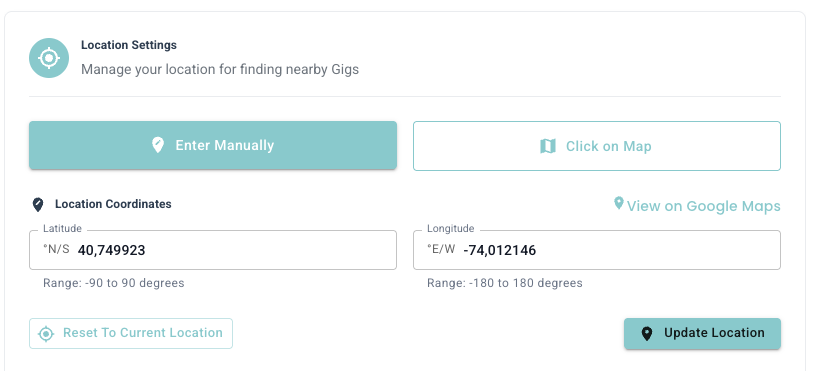 1. Go to **Settings** → **Location**
2. Type your address in the search field
3. Select the correct address from the suggestions
4. Click **Save** to confirm
The address autocomplete uses Google Maps for accurate location matching. Make sure to select the exact address from the dropdown.
### Option 2: Click on Map
1. Go to **Settings** → **Location**
2. Type your address in the search field
3. Select the correct address from the suggestions
4. Click **Save** to confirm
The address autocomplete uses Google Maps for accurate location matching. Make sure to select the exact address from the dropdown.
### Option 2: Click on Map
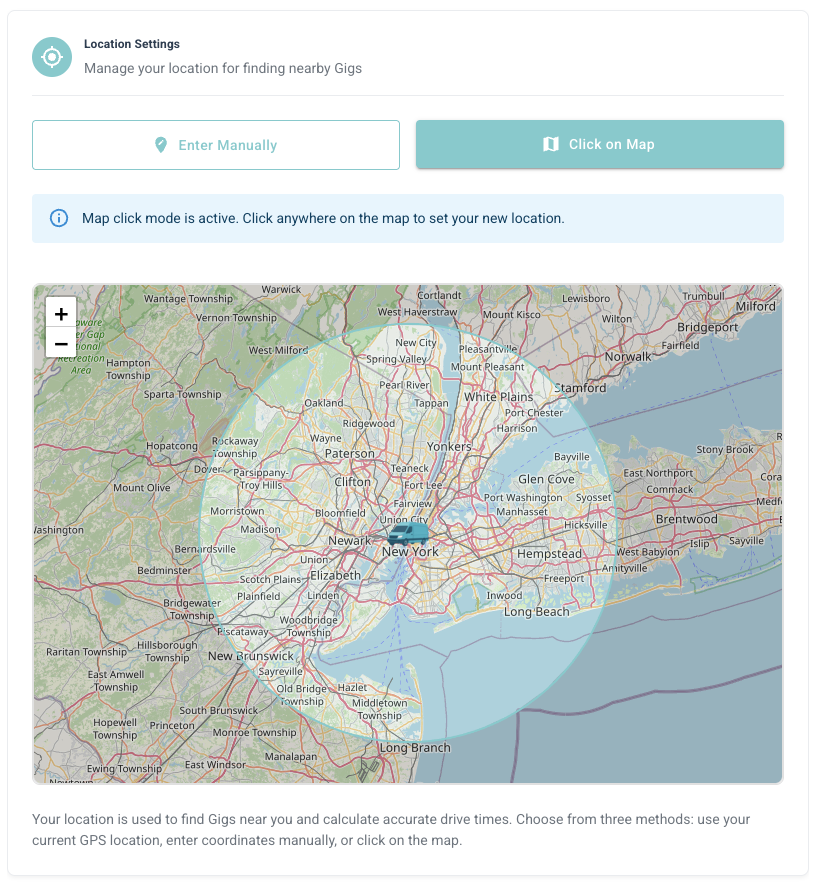 1. Go to **Settings** → **Location**
2. Use the interactive map to navigate to your area
3. Click directly on the map to pin your location
4. Adjust the pin by clicking a different spot if needed
5. Click **Save** to confirm
The map method is great when your address isn't recognized or when you want to set a location that isn't a specific street address (like a parking lot or intersection).
***
## Best Practices
Set the location where you typically start your driving day. This gives you the most accurate distance calculations.
If you move or change your starting location, update this setting immediately. Incorrect location = incorrect distance filtering.
If you drive from different areas on different days, update your location before activating the bot each time.
***
## Common Questions
Currently, GrabMyGig supports one active location at a time. You'll need to update it manually if you change your starting point.
Within a block or so is fine. The bot uses this for approximate distance calculations, not GPS-level precision.
Use the **Click on Map** option to manually pin your location. This works for any location, even if it doesn't have a street address.
***
## Next Steps
Select which cities/zones to receive offers from.
Configure distance and other search filters.
1. Go to **Settings** → **Location**
2. Use the interactive map to navigate to your area
3. Click directly on the map to pin your location
4. Adjust the pin by clicking a different spot if needed
5. Click **Save** to confirm
The map method is great when your address isn't recognized or when you want to set a location that isn't a specific street address (like a parking lot or intersection).
***
## Best Practices
Set the location where you typically start your driving day. This gives you the most accurate distance calculations.
If you move or change your starting location, update this setting immediately. Incorrect location = incorrect distance filtering.
If you drive from different areas on different days, update your location before activating the bot each time.
***
## Common Questions
Currently, GrabMyGig supports one active location at a time. You'll need to update it manually if you change your starting point.
Within a block or so is fine. The bot uses this for approximate distance calculations, not GPS-level precision.
Use the **Click on Map** option to manually pin your location. This works for any location, even if it doesn't have a street address.
***
## Next Steps
Select which cities/zones to receive offers from.
Configure distance and other search filters.