> ## Documentation Index
> Fetch the complete documentation index at: https://docs.grabmygig.com/llms.txt
> Use this file to discover all available pages before exploring further.
# Notifications
> Stay informed with real-time alerts via Telegram and Web Push
Never miss an update from your bot! GrabMyGig offers multiple notification channels to keep you informed about accepted offers and bot status.
***
## Notification Channels
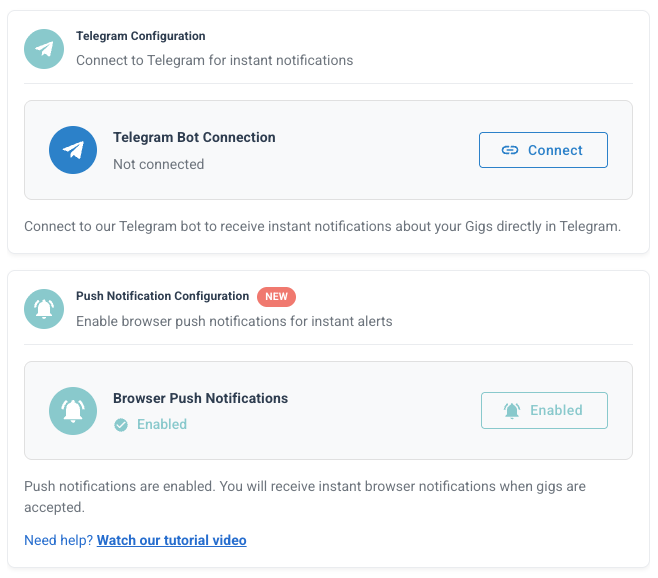
GrabMyGig supports two notification methods:
Instant notifications directly to your Telegram app. Works on all devices.
Browser notifications on your computer or mobile device. No app required.
***
## Setting Up Telegram Notifications
Telegram is the most reliable way to receive instant notifications, even when you're not near a computer.
Open [GrabMyGig Bot](https://t.me/GrabMyGigBot) on Telegram or search for **@GrabMyGigBot**.
Send `/start` to the bot to activate it and receive your unique Chat ID.
The bot will reply with your Chat ID. Copy this number.
Go to **Settings** → **Notifications** and paste your Telegram Chat ID.
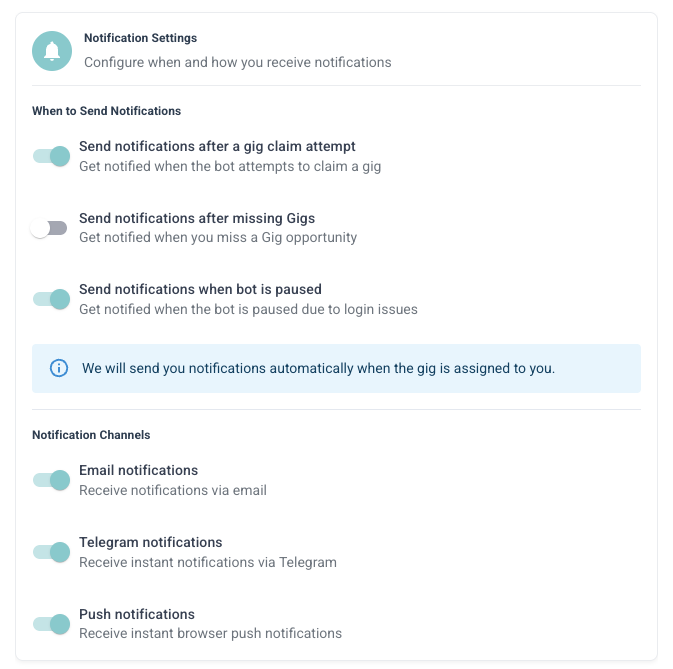
Toggle ON the notification types you want to receive via Telegram.
Test your Telegram connection by clicking the **Test** button after entering your Chat ID.
***
## Setting Up Web Push Notifications
Web Push notifications work directly in your browser - no additional apps needed!
### Video Tutorial
### Step-by-Step Setup
When prompted, click **Allow** to enable notifications from GrabMyGig.
Go to **Settings** → **Notifications** and toggle ON **Web Push**.
Web Push works best when you have the GrabMyGig tab open or the browser running in the background.
Make sure your browser allows notifications. Check your browser settings if you don't see the permission prompt.
***
## Notification Types
Choose which events you want to be notified about:
| Notification | Description |
| ------------------ | -------------------------------------------------- |
| **Offer Accepted** | When the bot successfully grabs a gig for you |
| **Offer Missed** | When a matching offer was taken by someone else |
| **Bot Started** | When your bot is activated |
| **Bot Stopped** | When your bot is paused or stopped |
| **Errors** | When the bot encounters issues that need attention |
We recommend enabling at least **Offer Accepted** notifications so you know when to head to a pickup location.
***
## Telegram vs Web Push
| Feature | Telegram | Web Push |
| --------------- | --------------------------- | ----------------------- |
| **Reliability** | ⭐⭐⭐ Excellent | ⭐⭐ Good |
| **Mobile** | ✅ Works everywhere | ⚠️ Requires browser |
| **Offline** | ✅ Receives when back online | ❌ Requires browser open |
| **Setup** | Requires Telegram app | No app needed |
| **Speed** | Instant | Instant |
For the best experience, we recommend setting up **both** Telegram and Web Push. Use Telegram as your primary channel and Web Push as a backup.
***
## Troubleshooting
* Verify your Chat ID is correct
* Make sure you started the bot with `/start`
* Check that you haven't blocked the bot
* Try the **Test** button to verify the connection
* Check browser notification permissions
* Make sure notifications aren't blocked for the site
* Try refreshing the page and re-enabling
* Some browsers require the tab to be open
* Check your internet connection
* Telegram notifications should be instant
* Web Push may have slight delays depending on your browser
***
## Next Steps
Manage your Roadie connection and subscription.
Configure what offers the bot should accept.
 ***
## Notification Channels
GrabMyGig supports two notification methods:
***
## Notification Channels
GrabMyGig supports two notification methods: