
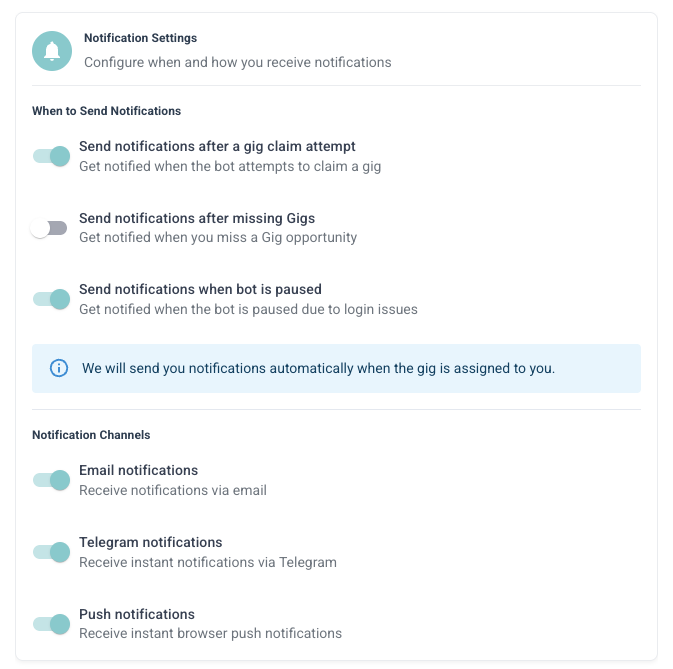
Notification Channels
GrabMyGig supports two notification methods: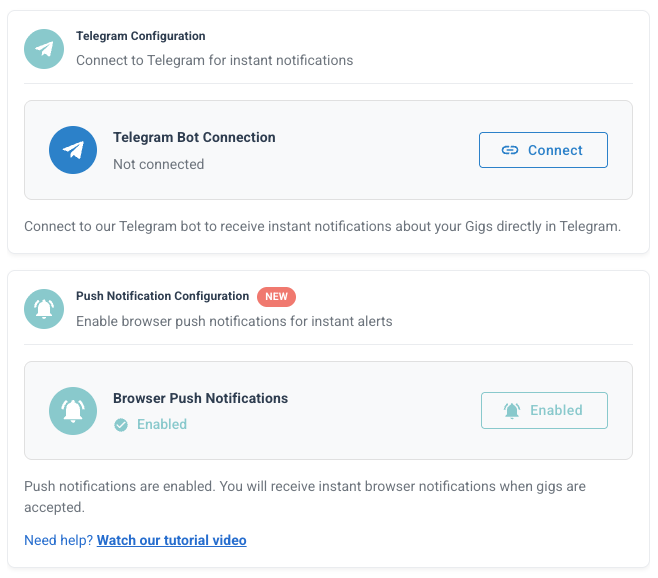
Telegram
Instant notifications directly to your Telegram app. Works on all devices.
Web Push
Browser notifications on your computer or mobile device. No app required.
Setting Up Telegram Notifications
Telegram is the most reliable way to receive instant notifications, even when you’re not near a computer.1
Open Telegram Bot
Open GrabMyGig Bot on Telegram or search for @GrabMyGigBot.
2
Start the Bot
Send
/start to the bot to activate it and receive your unique Chat ID.3
Copy Your Chat ID
The bot will reply with your Chat ID. Copy this number.
4
Enter Chat ID in Settings
Go to Settings → Notifications and paste your Telegram Chat ID.
5
Enable Notifications
Toggle ON the notification types you want to receive via Telegram.
Setting Up Web Push Notifications
Web Push notifications work directly in your browser - no additional apps needed!Video Tutorial
Step-by-Step Setup
1
Allow Browser Notifications
When prompted, click Allow to enable notifications from GrabMyGig.
2
Enable Web Push in Settings
Go to Settings → Notifications and toggle ON Web Push.
3
Keep Browser Open
Web Push works best when you have the GrabMyGig tab open or the browser running in the background.
Notification Types
Choose which events you want to be notified about:We recommend enabling at least Offer Accepted notifications so you know when to head to a pickup location.
Telegram vs Web Push
Troubleshooting
Not receiving Telegram notifications
Not receiving Telegram notifications
- Verify your Chat ID is correct
- Make sure you started the bot with
/start - Check that you haven’t blocked the bot
- Try the Test button to verify the connection
Not receiving Web Push notifications
Not receiving Web Push notifications
- Check browser notification permissions
- Make sure notifications aren’t blocked for the site
- Try refreshing the page and re-enabling
- Some browsers require the tab to be open
Notifications are delayed
Notifications are delayed
- Check your internet connection
- Telegram notifications should be instant
- Web Push may have slight delays depending on your browser
Next Steps
Account Settings
Manage your Roadie connection and subscription.
Search Settings
Configure what offers the bot should accept.